
Metadata Tags for Page Titles
|
|
|



Imagine you are sending out multiple surveys to collect feedback on various projects, teammates, clients, supervisors, etc.
Our new metadata tags for page titles make it easier for your respondents to remember what the feedback is being collected about. This empowers them to provide you with feedback more efficiently and avoid going back and forth between the email message and the welcome page to identify it.
This article will help you understand:
When do you use metadata on page titles?
How do you add metadata to page titles?
Metadata on Dropthought
In Dropthought, Metadata can be considered information labels that can help you distinguish respondents based on criteria like name, employee ID, department, tenure, etc. These labels will help you slice and dice your data and create segments to better analyze.
Using Metadata Tags on Page Title

Scenario
Let's say you're a project manager at a tech company overseeing multiple projects simultaneously.
You regularly roll out surveys to collect feedback from team members, clients, and supervisors on various aspects of these projects.
Each survey is tailored to a specific project or team member, and you want to ensure that respondents can easily identify the purpose of the feedback they're providing.
You can add it to the email body, but imagine the frequent back-and-forth that the respondent has to do if they have multiple surveys to fill out.
Our new metadata tags for page titles make it easier for your respondents to remember what the feedback is being collected about.
This empowers them to provide you with feedback more efficiently and avoid going back and forth between the email message and the welcome page to identify it.
Benefits
Enhanced Survey Relevance: Clear metadata in page titles ensures that respondents understand the context of the feedback being collected. This increases the survey's relevance to them, making them more likely to provide meaningful responses tailored to the specific project or individual being evaluated.
Reduced Cognitive Load: With metadata tags guiding respondents in the page titles, they don't need to rely solely on memory or external references to understand the purpose of the survey. This reduces cognitive load and makes it easier for respondents to engage with the feedback process, leading to more accurate and detailed responses.
Streamlined Feedback Collection: Respondents can quickly identify which survey they're responding to, reducing the likelihood of errors or misunderstandings arising from vague or generic titles.
Add Metadata Tags to the Page Title
You can add metadata to a program that is in the draft stage.
Follow the below steps to add metadata to the page title:
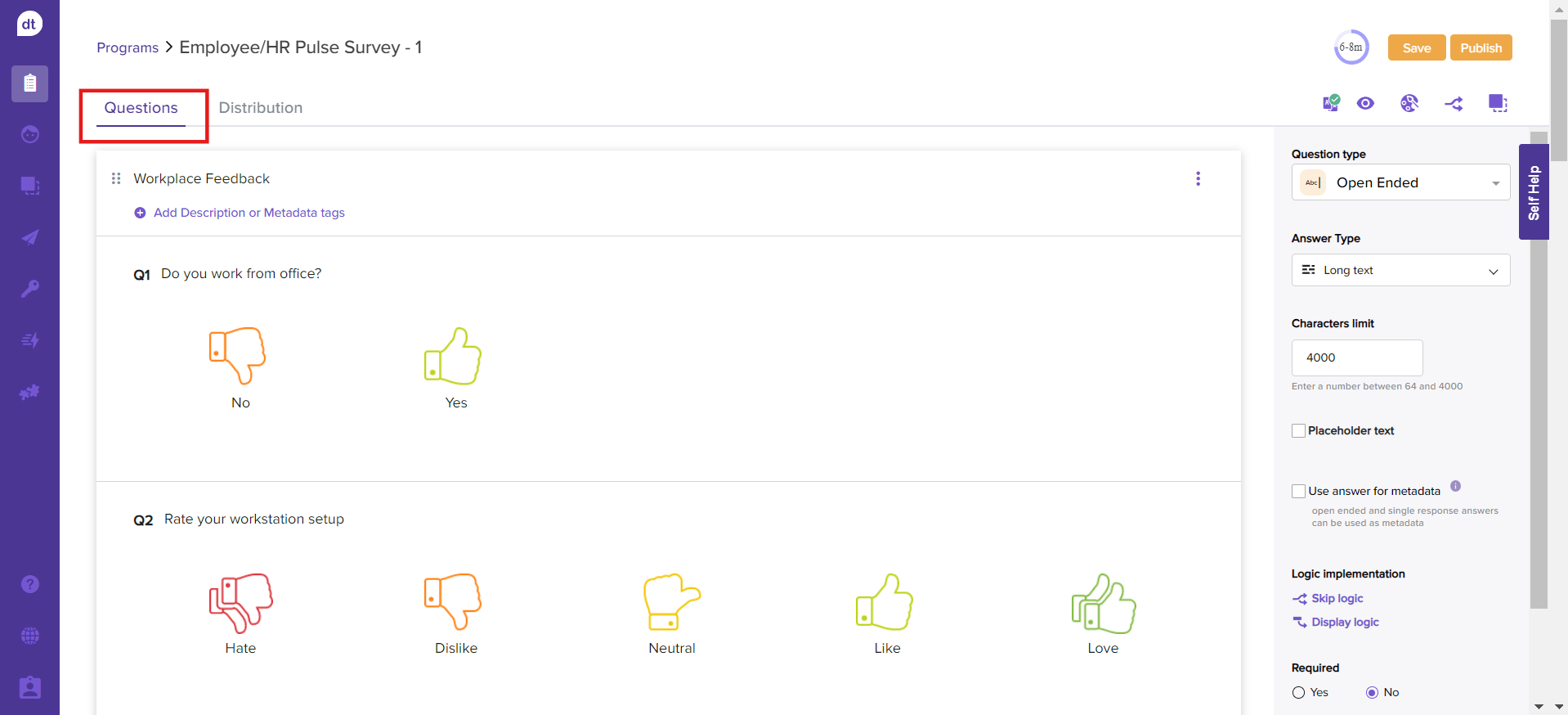
Navigate to the program’s Questions tab.
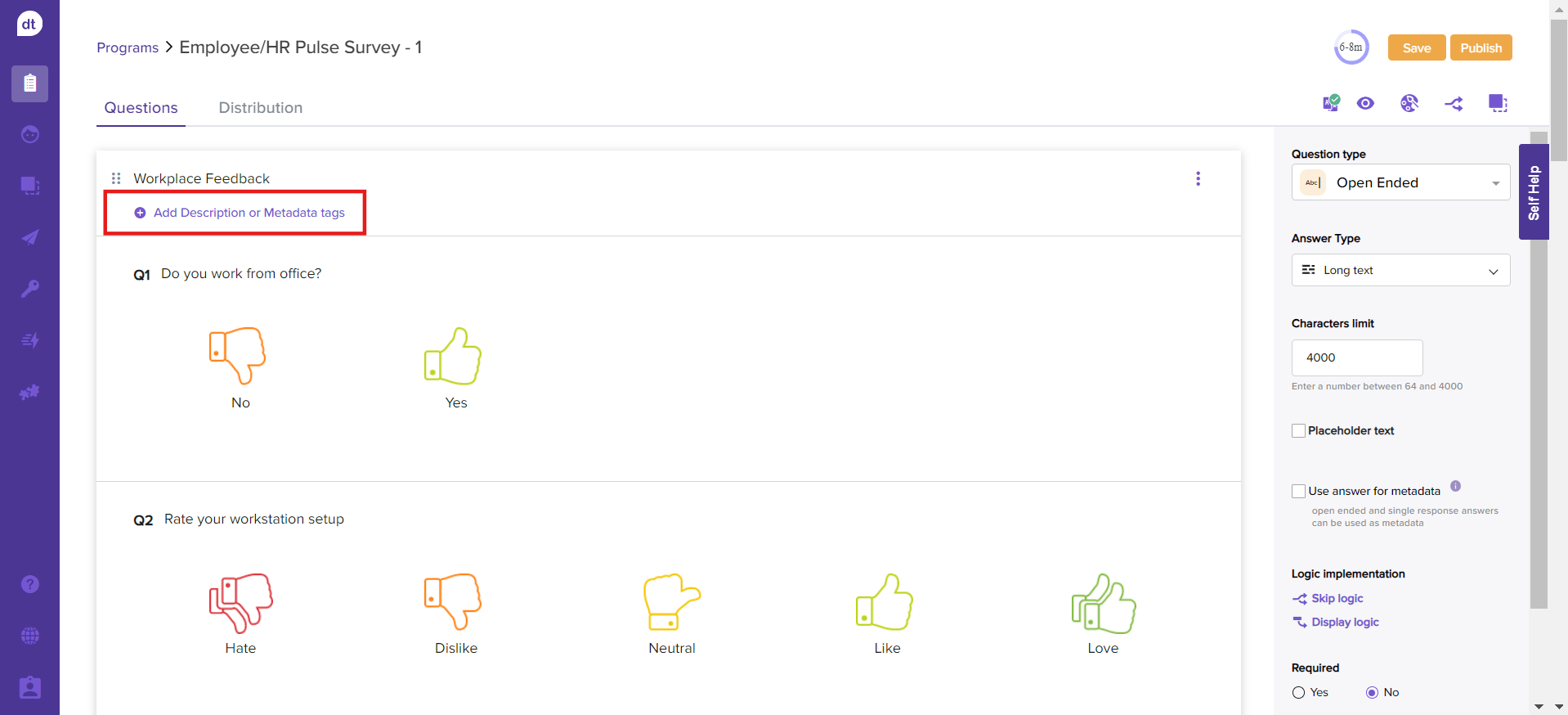
Click on + Add Description or Metadata tags.
Click on the icon:
 below the Page Title.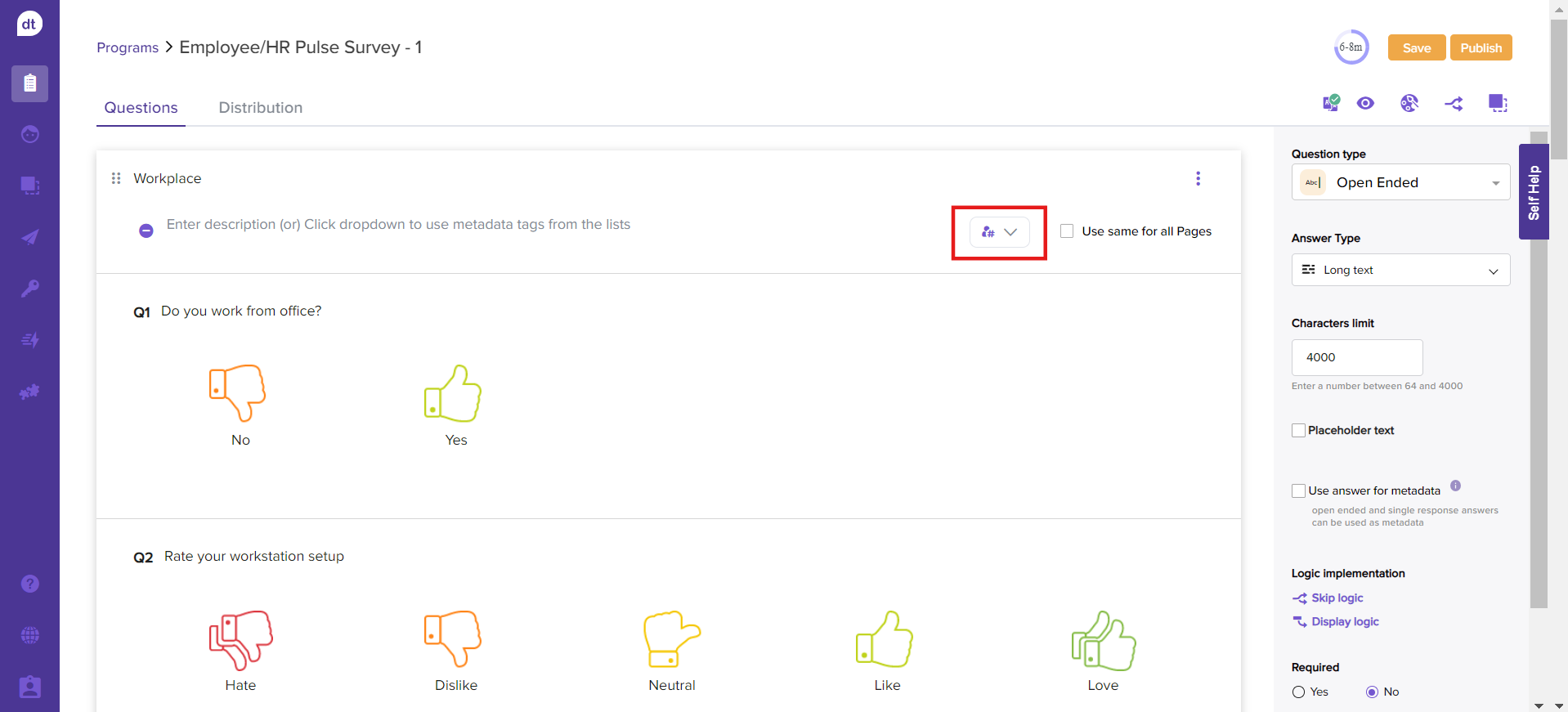
The drop-down menu displays all available lists, sub-link lists, and dynamic collectors.
Select a desired one.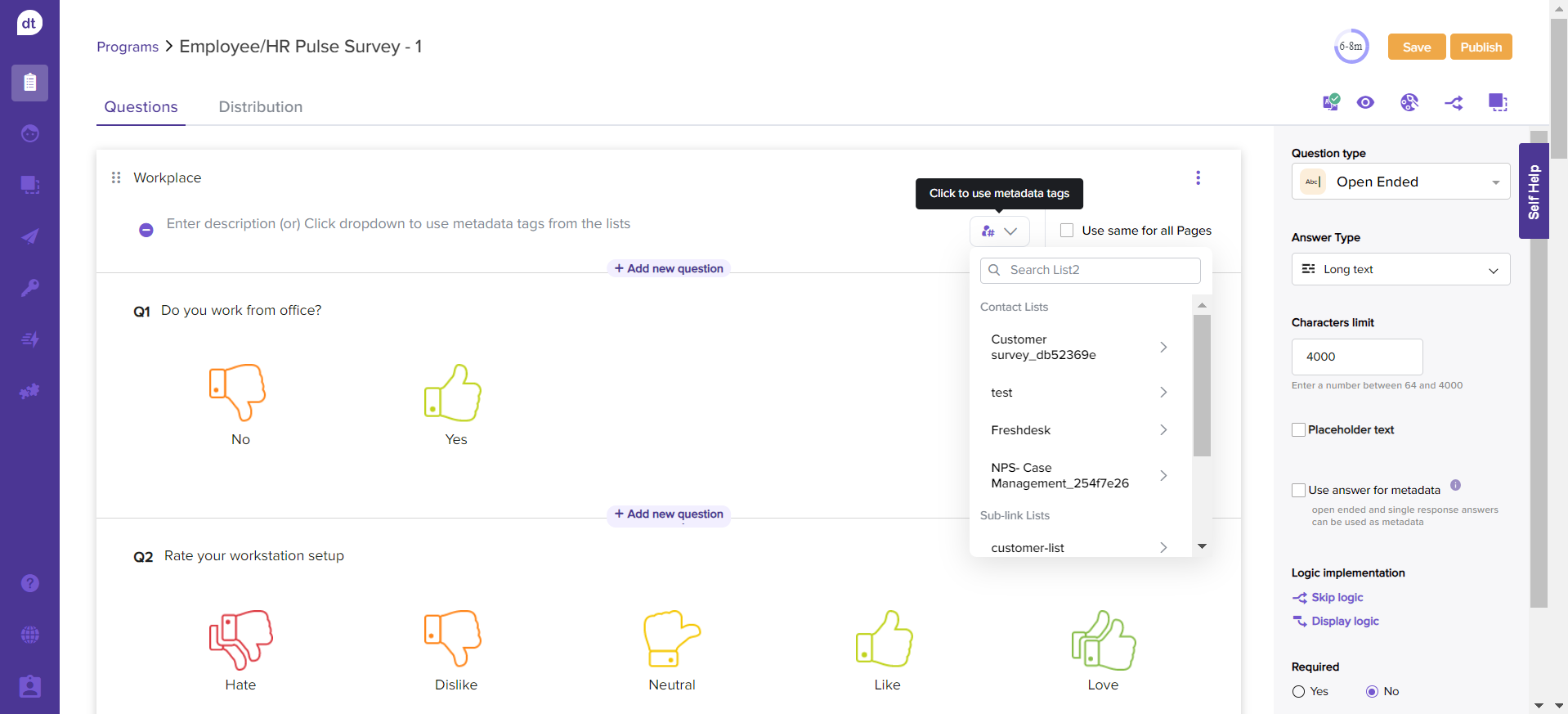
Upon clicking on a list, sub-link, or dynamic collector, all the metadata (headers) available will be displayed.
Select one and it will be added to the page title. Repeat the step 4 to add more metadata.
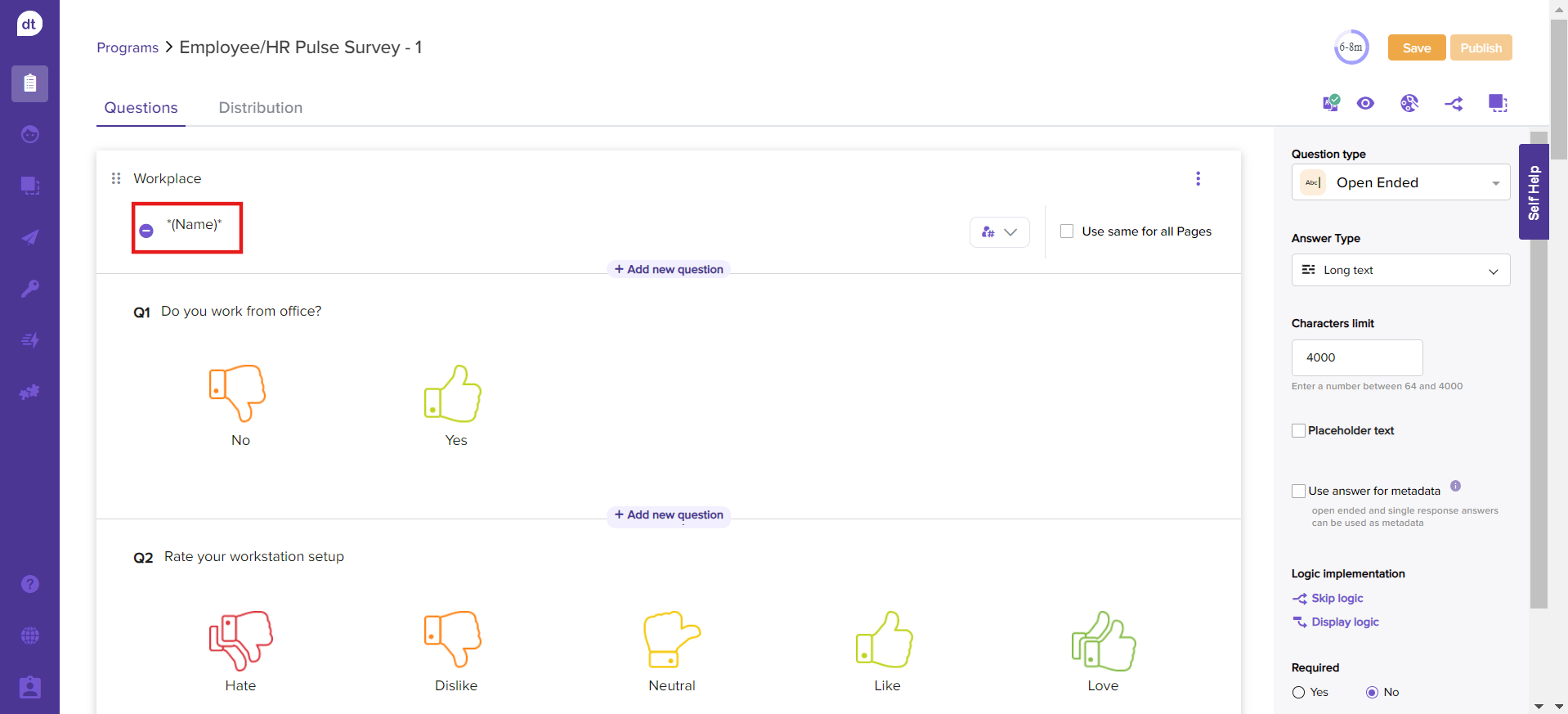
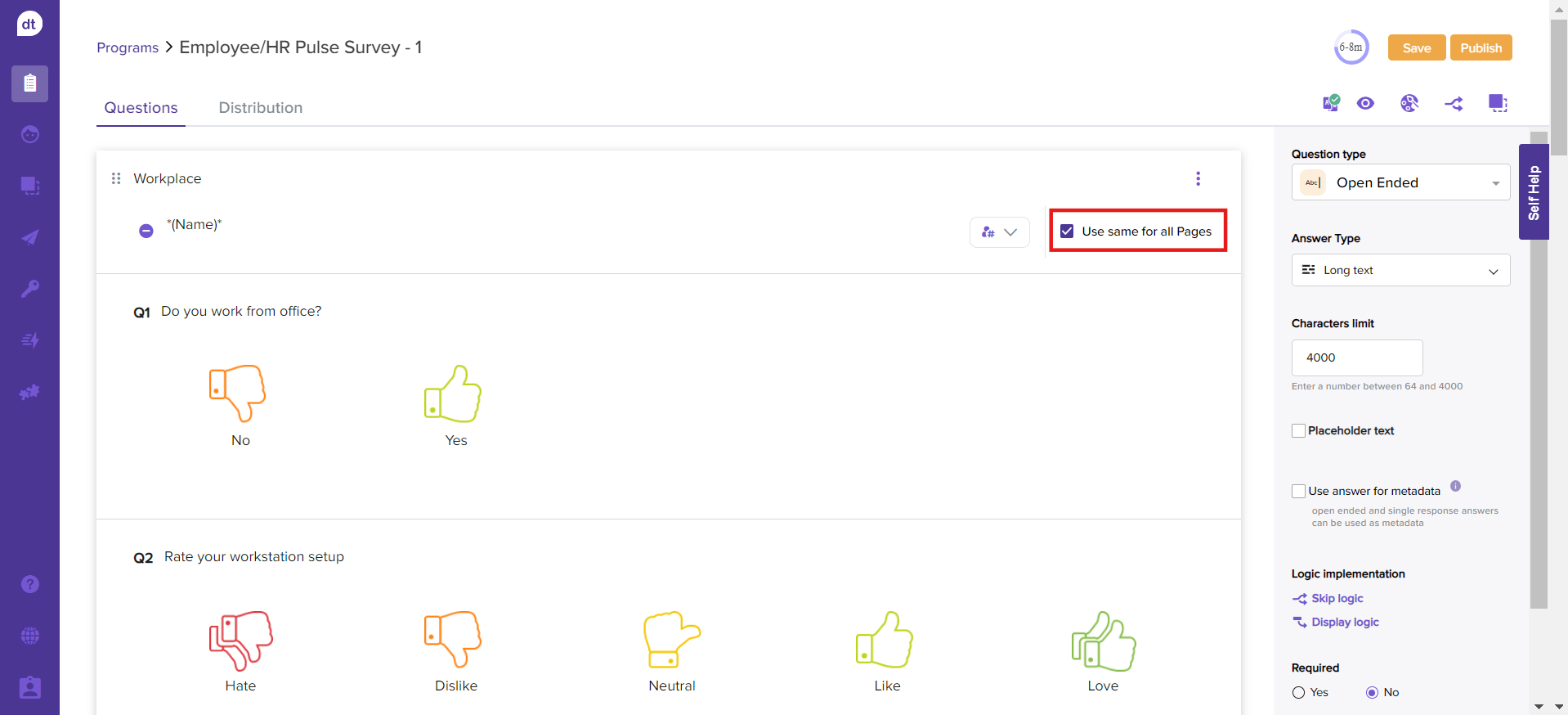
Click on Use same for all pages to copy the tags across all pages of your survey.

Note
The email, SMS, and WhatsApp channels will be automatically enabled if you have used a contact list. Also, the contact list you used for metadata tags will be used as the survey recipient list.
If you have used a sub-link list, the shareable links (one or more shareable links), QR codes (multiple static QR codes), and Kiosk (multiple kiosk links) will be automatically enabled.
If you have used a dynamic collector, the QR code (Multiple QR codes from dynamic collector) will be automatically enabled.
You can switch between the list types anytime. Accordingly, the distribution channels will be enabled or disabled automatically.
Later, if required, you can manually enable or disable the required distribution channel and send out the survey.If you are switching between lists, ensure that you remove the previously added metadata tags.
Preview Metadata on Page Title
After adding all the required metadata, click on the Preview icon:  .
.
You will be able to preview tags as the page title, as in the screenshot given below:

Upon publishing, the preview tags (metadata tags) will be replaced by the metadata value from the attached contact list/QR code/dynamic collector.
Related Topics: Program Customization | Manage Program Pages
.png?inst-v=03d3d293-bd62-4aaf-8fc5-0f74d934cc6a)