Pin & Watch
The Pin & Watch feature in Dropthought allows you to pin important charts or respondents' details from a program details page. It helps you organize all that you want to view in one place.
This article will help you understand:
What are pinned cards?
How do you pin a program or respondent?
Pinning Options
The option to pin is available from a program’s details page. You can pin the following:
Any charts from the Overview tab
Questions from the Questions tab
Respondents from the Respondents tab


Pin Chart or Respondent Details
Navigate to any program details page.
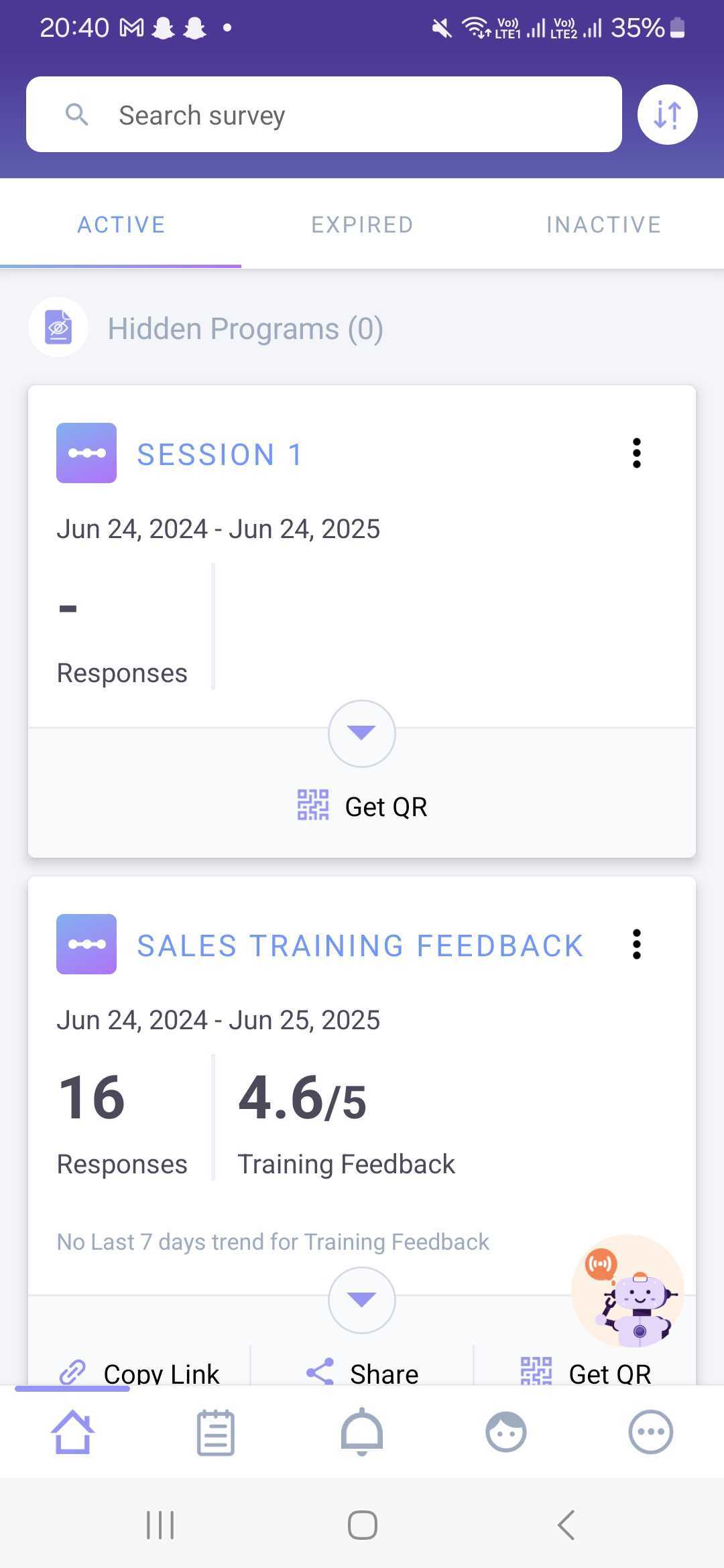
Go to the Overview or Questions or Respondents tab from the program details page.
Locate and click on the pin icon beside the chart or respondent card.
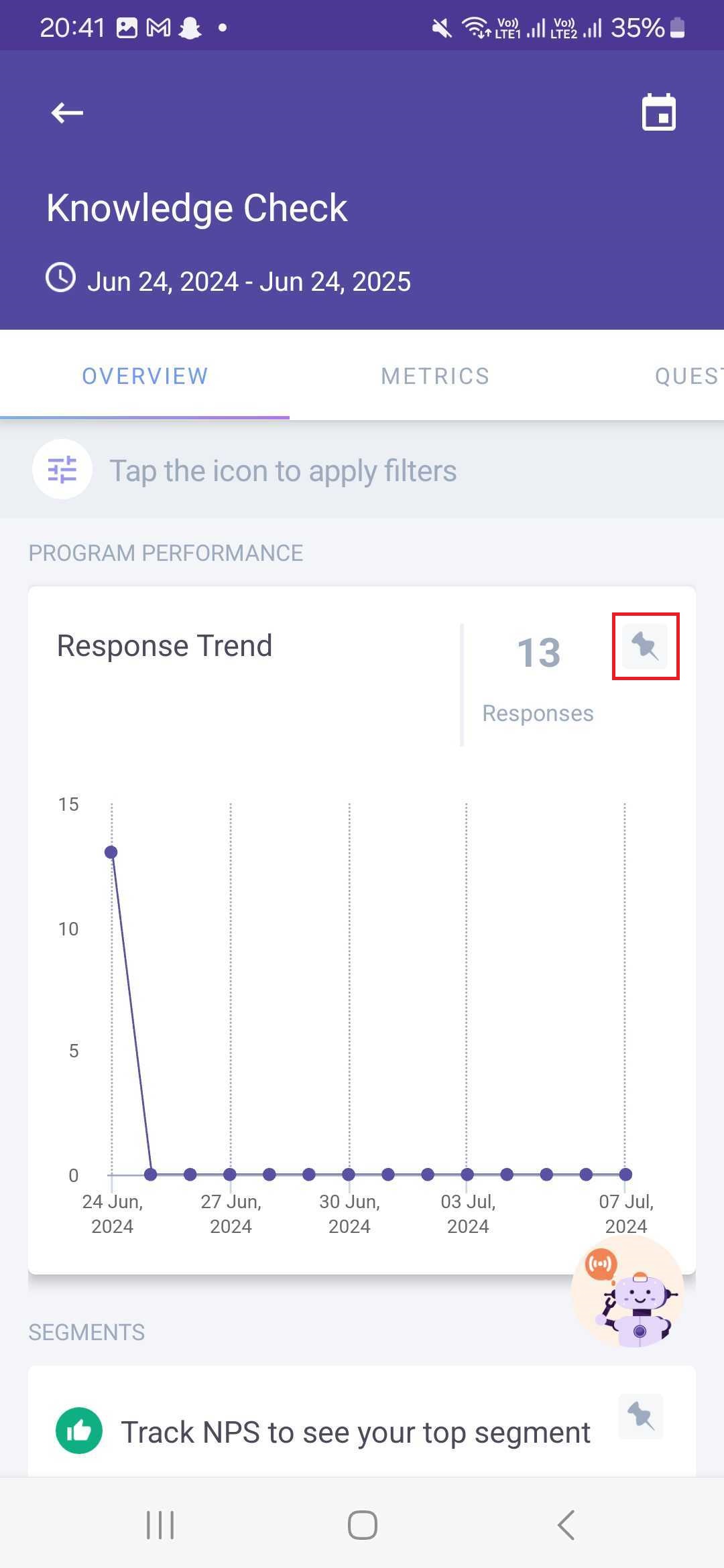
The respective chart or respondent details will now be available from the Pin & Watch in the settings tab.
View Pinned Cards
Navigate to the settings page in your dropthought mobile app.
Click on the Pin & Watch icon to view all your pinned charts and respondents.
You can view a complete list of what you’ve pinned, making it easy to track.
Use the search feature to find the program easily from all pinned programs.
Click on any pinned card to go to its detailed page.
From the detailed page, you can view two tabs: chart and respondents.
These allow you to view charts and respondent information separately for easier data analysis and understanding.Also, users can filter out the details and view the month, year, and time above each chart and respondents tab for easier data analysis and understanding.


Unpin
The unpin feature lets you remove a pinned card from the pinned tab if it is no longer needed. Follow the below steps to unpin a card:
Click on the pin icon from any of the cards.
You will be prompted to confirm the action.
Click on UNPIN to remove your card from the pinned cards.