Login to Dropthought Mobile App
This article will help you understand:
How do you log in as a new or existing user?
What are the different methods available for logging in?
For New Users
As a new user, we recommend logging in from the web. Learn more.
For Existing Users
As an existing Dropthought user, follow the below steps to access the mobile application:
Open Dropthought app.
Choose one of the following login methods.
Email & Password: Enter your registered email, and you will be redirected to the next page to enter your password.
SSO (Google, Microsoft, Apple): Choose any of these accounts and ensure the email is registered with Dropthought.
You will be redirected to the Dropthought dashboard.


Reset Password
You can reset your password or use the verification code sent to your email to log in.
Enter your email address registered with Dropthought in the following screen and click Next.
Verify the given email and click on Send me an email. You can either add a new password or use the verification code sent to your email to log in. Please do not close this tab if you are using the verification code.
Navigate to your inbox and go to the email. Click on Reset Password.
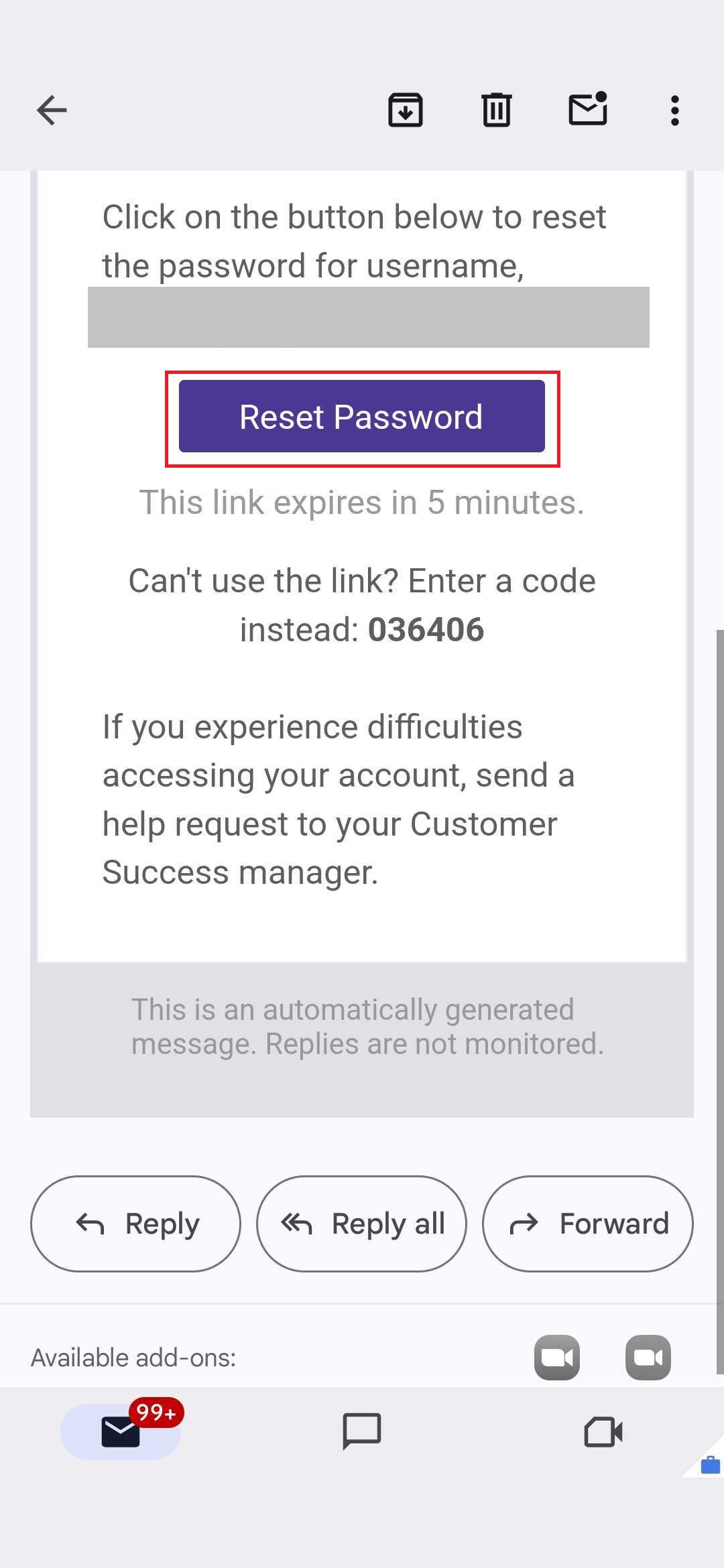
From the new tab, enter the new password and confirm it by re-entering it.
Click on Reset Password.
Go back to the login page and enter the new password to log in.

Verification Code
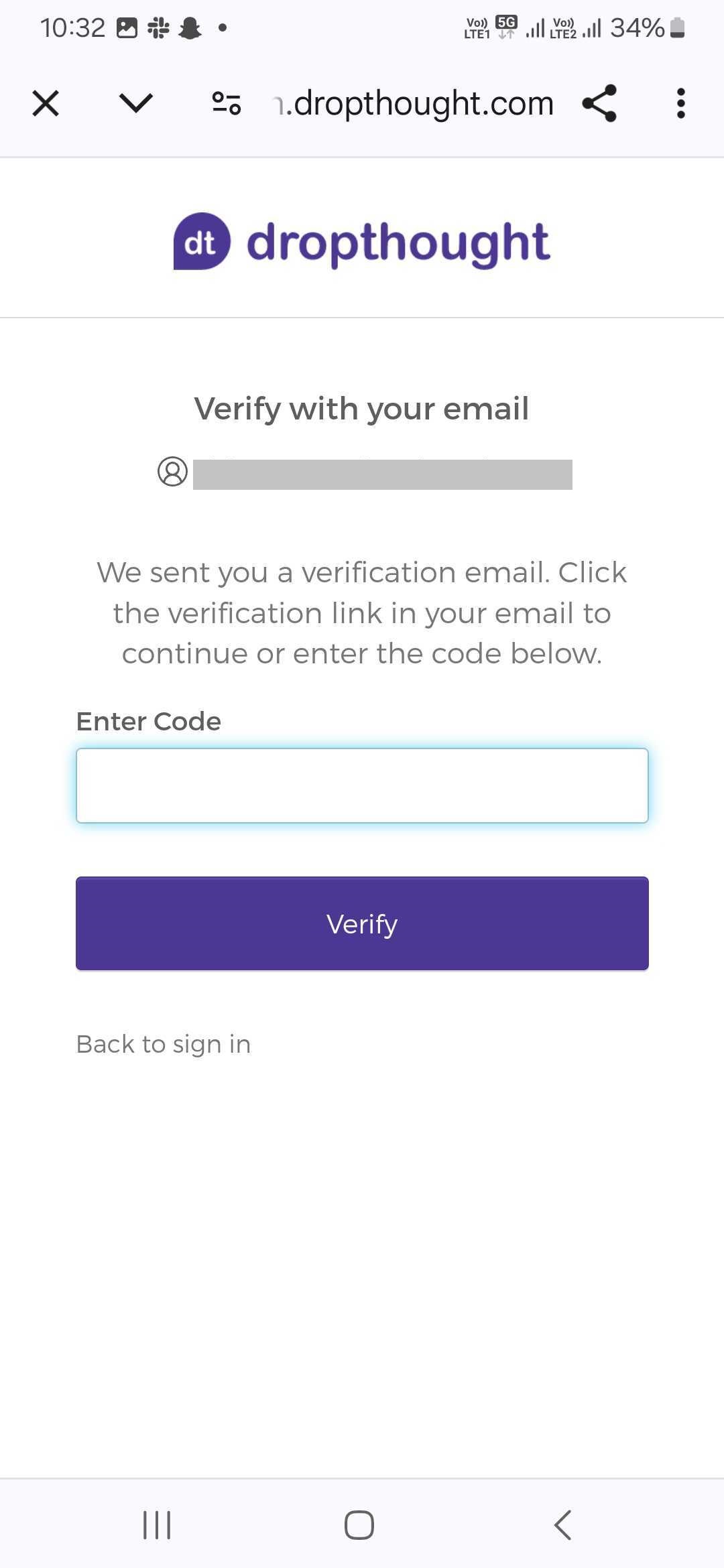
If you are not using a new password, follow the below steps to use the verification code to log in to Dropthought:
Look for a verification code in your email and click the reset link.
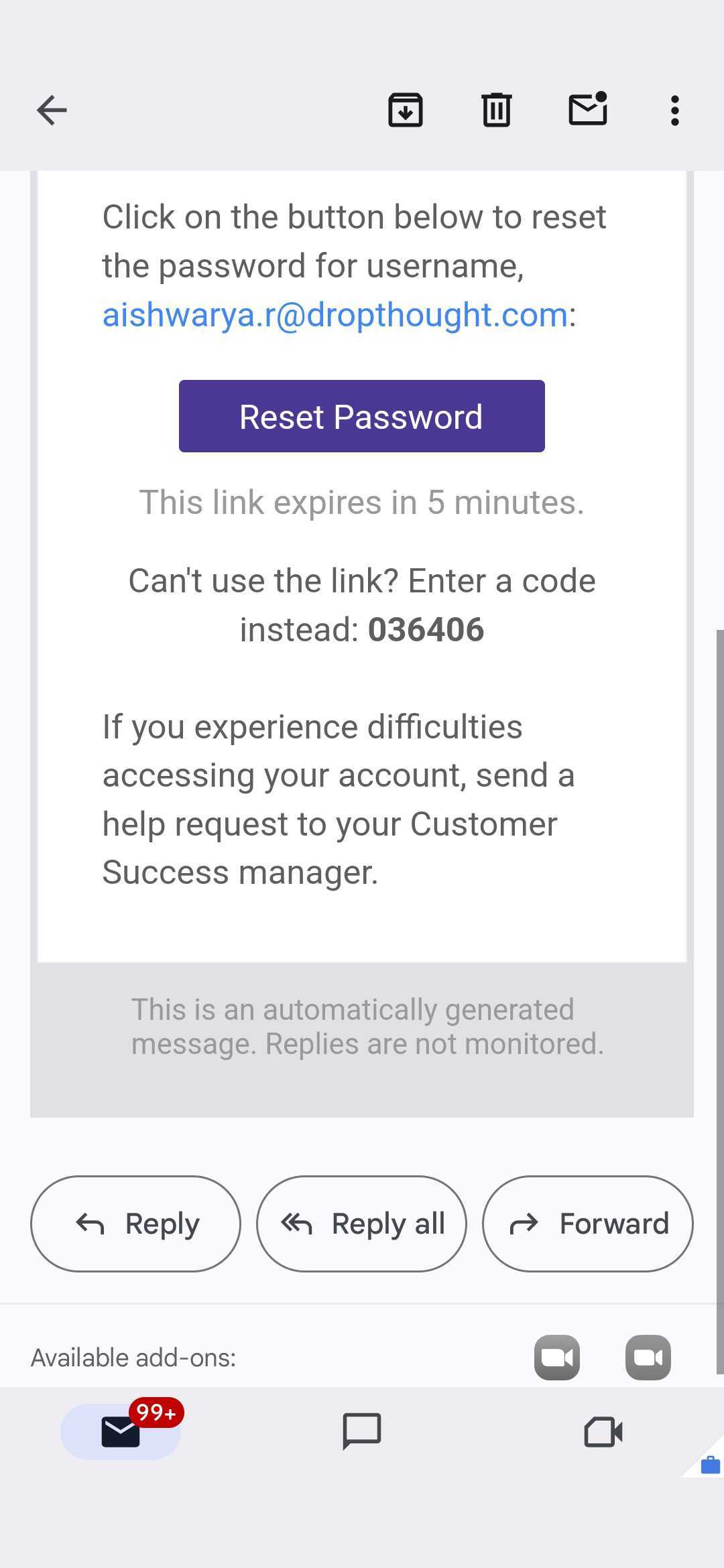
On the reset password screen, click Enter verification code instead.
Paste the code and click Verify to log in.